Implementing a Command Palette and Task Timer
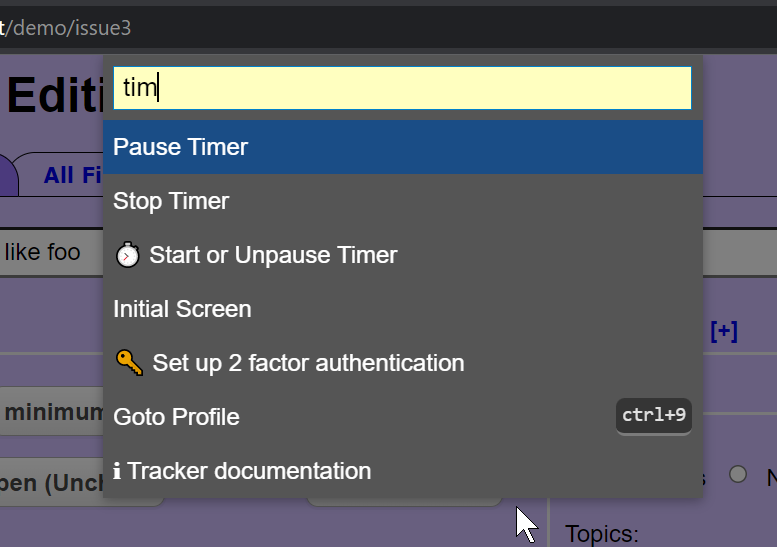 I am a developer for the open source Roundup Issue Tracker. It has many use cases. One is to develop issue trackers like GitHub Issues, Bugzilla, or Request Tracker. I also develop a custom issue tracker for a help desk environment. This article describes the steps in adding a task-timing feature for that tracker.
A user requested a task timer. The workflow:
- open an issue page,
- start a timer,
- start the task associated with the issue,
- use the issue page to document the work.
When done, the user would:
- stop the timer,
- finish documentation, attach files, and make other changes to the issue,
- submit the time and other changes.
There are a few decisions to make:
- timer functions
- is start/stop enough?
- is pause/restart needed?
- does the user need to change/set/edit the timer?
- do we need to track seconds, minutes, and hours? Since the customer is billed for the time, recording seconds seems excessive. Is there a scenario where the timer would need to record seconds?
- timer controls
- do we use a button/buttons? Does checking a checkbox activate the timer?
- what does the UI look like for each timer function? Are the controls in the issue page? Are the controls in a floating popup? Does the popup need to be movable/collapsible so it doesn't block access to the underlying issue?
- notification feedback
- how is the user notified that the timer is running/paused/stopped?
- how does the user see the elapsed time?
- future planning
- how to add controls without cluttering an already complex interface
- what impact will this have on adding future feature requests in the same context
- does this guide us in implementing future workflows
Evaluating a Command Palette
I decided to try to install a command palette. A command palette is a UI interface usually activated by a hotkey. It allows searching and selecting from a context-sensitive list of commands. You might be familiar with the VS Code command palette. Command palettes have many advantages for users:
- discover useful commands (and their shortcuts)
- faster than scrolling down a long list of commands
- keyboard is faster than using the mouse
- invisible until activated
- make commands available that wouldn't be important enough to get a button or other UI element
There are many command palette implementations in JavaScript. Some are used with specific frameworks. For example, kbar is a React component and spotlight is a Laravel component. I wanted one that would work with Vanilla JavaScript. I identified two candidates:
- command-pal – “The hackable command palette for the web, inspired by Visual Studio Code.”
- Ninja Keys – “Keyboard shortcut interface for your website that works with Vanilla JS, Vue, and React.”
Ninja Keys uses Lit while command-pal uses Svelte. I don't have any experience with either, so.... Both of them can bind any command on the palette to a hotkey thanks to hotkeys.js. Both are MIT licensed. Command-pal is larger in size, but it also bundles all the libraries it needs. It looks like Ninja Keys loads libraries/modules on demand from CDNs on the internet. Being able to use the library without internet access is a nice feature.
Command-pal promotes itself as “hackable”. This usually means flexibility and sometimes simplicity. I like both. Command-pal's feature set wasn't as impressive as Ninja Keys. But it does include a floating button to trigger the command palette on mobile. This is a nice touch as moving the page to access UI elements can be tedious on mobile.
Adding command-pal
As a result, I chose command-pal. Integrating it was easy. I downloaded the file from the CDN. I also downloaded the dark theme from GitHub. I added a script tag and stylesheet link to the top-level page Roundup template file. This makes command-pal available on all the tracker's pages.
To invoke it, I added:
 const c = new CommandPal({
   hotkey: "ctrl+space",
   hotkeysGlobal: true,
   commands: commands,
 });
 c.start();
inside a script tag. The tracker is a web application. Sadly, the classic command palette hotkeys: “ctrl+k” or “ctrl+shift+p” are already used by the browser. I also wanted to activate the palette using the hotkey when focused on an input, select, or textarea. hotkeysGlobal: true should do that, but it didn't work for me in Firefox, Chrome, or Brave). I submitted a pull request to fix it.
The commands array included:
  [
    {
      name: "Exit Command Palette",
      contexts: [ "all" ],
      weight: -10,
    },
    {
      name: "Initial Screen",
      description: "Screen shown after login.",
      contexts: [ "all" ],
      handler: () => (window.location.href = "."),
      shortcut: "ctrl+i",_
      weight: 5,
    }, ...
]
Besides the fields used by command-pal:
- name,
- description,
- handler,
- shortcut
I added extra fields:
- weight
- contexts
These were inspired by the Superhuman blog on building a remarkable command palette. Among the things they suggest are:
- order commands by popularity/utility
- listed commands are context sensitive
The commands are initially sorted by weight (using commands.sort()). This displays the most popular (highest weight) commands at the top of the menu. Displaying the search results sorted by weight is an ongoing project.
The command is shown if its contexts property matches the current context. For example, the task timing commands only make sense when editing an issue. They should not be shown when viewing a list of issues, or a user's profile page. Inspecting the page's URL determines the current context. The code filters the command list, eliminating commands that are not appropriate for the context. Only then is CommandPal invoked.
Originally written as a 2 part series. To see the transition click here or just continue reading...
I hope you have enjoyed learning about command palettes and command-pal in particular. In part 2, we will use command-pal to control the task timer and look at how it integrates with the tracker built using the Roundup Issue Tracker.
{% embed https://www.roundup-tracker.org %}
I am a developer for the open source Roundup Issue Tracker. It has many use cases. One is to develop issue trackers like GitHub Issues, Bugzilla, or Request Tracker. I also develop a custom issue tracker for a help desk environment. This article continues with the steps to add a task-timing feature for that tracker.
In part 1 of this series I had just finished installing command-pal. Let's take a closer look at command-pal before we get to the timer.
Enhancing command-pal and Handling a Showstopper
The Superhuman blog post lists other desirable features for a command palette:
- fuzzy search (for mispelings 8-)) – is included in command-pal using fuse.js. (It looks like there is a fork of Ninja Keys that has fuzzy search support.)
- icons – I created an issue and pull request to add support
- synonyms – the fuzzy search includes the description field. This helps broaden the matching terms. But a description shouldn't be a keyword/synonym list. fuse.js can search an array of strings that are part of an object. Adding this functionality is a work in progress.
One interesting possibility is supporting multiple command palettes on a page. Each palette would have a different set of commands. I am not sure that's a good idea. Superhuman suggests making the command palette omnipotent. Multiple palettes force the user to make a decision about which palette to activate. This breaks the idea of “don't make me think”. I was able to create and activate multiple palettes with different hotkeys. However, more work on supporting multiple palettes on a page is needed.
At its core, a command palette is a large select modal. Having the ability to activate the modal from Javascript could allow the palette to be used in more places without making the user think.
I am pleased with command-pal. I have found it quite hackable even though I have never used Svelte before. However, I did have one potential showstopper.
The tracker uses a Content Security Policy (CSP). Style blocks in the page include a nonce. If the nonce is missing or doesn't match the one in the CSP the style blocks are ignored. Svelte generates style blocks for each element that it creates/injects. These client-side blocks, don't have access to the server's CSP nonce. If they did have access to the nonce, the nonce would be useless for securing the page's assets. If the style blocks were in a file that could be fetched using a stylesheet link, everything would be fine. However, efforts to do this with Svelt have failed. Another alternative is to generate a secure hash (sha256, 384, or 512). How to get this generated at build time is unclear. However, I did find a way to calculate it at runtime that seems to work. I proposed a patch to allow an administrator to generate the hashes using the command-pal library.
The mechanism for controlling the task timer is done. Now to turn my attention to actually timing tasks.
Let's Time All The Things
I chose the easytimer.js library. It supports:
- setting an initial value to start counting time
- one minute timer granularity – to reduce CPU load
- pausing and restarting timers while keeping their accumulated time.
The command palette allows the gross controls: stop/start/pause/resume. I still need to handle the other parts of the UI. The existing issue page provides a field for manually entering the task time. Rather than trying to create a new UI for the timer, I reused the existing field. The UI is relatively simple. There is a “Time spent” input element referred to as the “time element” below.
- If the user prefills the time element with a number of minutes, the timer will start counting up from that time. This is helpful if you forgot to start the timer and start it after say 10 minutes.
- The use case only requires 1 minute precision. Since I am counting in minutes, I add one minute to the start time. This rounds the time up to the next minute.
- The time element is updated only once a minute. This is great for reducing CPU use, but poor for user feedback. There needs to be some way to notify the user that the timer is running. This needs to work without interfering with the ability to use the rest of the issue interface. Using a popup could work. But popups clutter the interface. If it can't be moved, it may hide something the user wants to use. Instead, I cycle the background color for the time element from yellow to goldenrod every 5 seconds. This is done using CSS rather than javascript. It should perform better than updating the input with a flashing indicator every second.
- The animation stops when the timer is paused. But the yellow background color is still shown in the time element.
- When the timer stops, the background of the time element returns to white.
- Besides the time element displaying state, other elements of the page change as well. Starting the timer makes a pending change to the issue. The issue page already has a mechanism for indicating a page with a pending change. Starting the timer triggers this mechanism. This results in:
- a change in the background color of the time element label (“Time spent”)
- a change in the background color for the H1 header on the page
- the H1 header on the page gets “pending changes” appended
- the title for the page has an exclamation mark prepended to it; allowing the page to be identified in a list of page titles
- the favicon for the page is overlayed with an exclamation mark inside a yellow dot; allowing the tab to be identified if the text can't be shown.
The command-pal Javascript Entries
Here are the three commands for working with the timer:
// more commands
{
name: "Start or Unpause Timer",
description: "timer",
contexts: [ "issue.item" ], // only show timers on an issue page
handler: () => {
if ( ! window.userTimer ) {
try {
// create the object
window.userTimer = {
timer: new easytimer.Timer({precision: "minutes"}),
timeField: document.getElementById("time"),
animation: null,
}
} catch (err) {
alert(`Error: ${err.name} - ${err.message}`)
}
}
let timer = window.userTimer.timer;
let timeField = null;
if ( window.userTimer.timeField ) {
timeField = window.userTimer.timeField;
} else {
alert("Unable to find 'Time Spent' field. Are you viewing an issue?");
return;
}
if ( timer.isRunning() ) {
alert("Timer is running for: " +
timer.getTimeValues())
return;
}
// restart timer
if ( timer.isPaused() ) {
timer.start();
alert("Timer restarted at: " +
timer.getTimeValues())
window.userTimer.animation.play()
return;
}
// start timer instance
let timeValue = parseInt(timeField.value);
if (! timeValue || isNaN(timeValue)) { timeValue=0; }
// round up time to next minute: 10 seconds -> 1 minute
let startValues = { minutes: timeValue + 1 }
timer.start({
startValues: startValues,
callback: function (timer) {
let timeField = window.userTimer.timeField
timeField.value = timer.getTotalTimeValues().minutes;
}
});
alert("Timer started at: " +
timer.getTimeValues())
window.userTimer.animation = animate_timer(timeField);
timeField.value = timer.getTotalTimeValues().minutes;
// mark field/page with a pending change
timeField.dispatchEvent(new Event('change',
{bubbles: true}))
},
icon: '<span class="icon"> ⏱️ </span>', // stopwatch emoji
weight: 10, // sort this to the top of the list
},
{
name: "Pause Timer",
contexts: [ "issue.item" ],
description: "Update time field and snooze the timer",
handler: () => {
if (! (window.userTimer && window.userTimer.timer) ) {
alert("No timer was started.");
return;
}
let timer = window.userTimer.timer
let timeField = window.userTimer.timeField
let animation = window.userTimer.animation
if ( ! timer.isRunning() ) {
alert("Timer is not running, time is: " +
timer.getTimeValues());
return;
}
timer.pause();
animation.pause()
timeField.value = timer.getTotalTimeValues().minutes;
alert("Timer paused at: " + timer.getTimeValues());
},
},
{
name: "Stop Timer",
contexts: [ "issue.item" ],
handler: () => {
if (! (window.userTimer && window.userTimer.timer) ) {
alert("No timer was started.");
return;
}
let timer = window.userTimer.timer
if ( ! ( timer.isRunning() || timer.isPaused() )) {
alert("Timer is not running, time is: " +
timer.getTimeValues());
return;
}
let animation = window.userTimer.animation
let timeField = window.userTimer.timeField
timer.pause(); // stop time update
timeField.value = timer.getTotalTimeValues().minutes;
timer.stop(); // also zero's timer.
animation.cancel();
window.userTimer.animation = null;
},
},
// more commands
(Note: the version of command-pal that I am running has the change to support icons.)
There is one helper function to set up the animation for the “Time spent” input field:
function animate_timer(input) {
  return input.animate(
    [
      {backgroundColor: 'yellow', easing: 'linear'},
      {backgroundColor: 'goldenrod', easing: 'linear'},
      {backgroundColor: 'yellow', easing: 'linear'}
    ],
    {duration: 5000, iterations: Infinity}
  );
}
Working Example
You can see this in action on the demo site. Use demo/demo for login. Activate the palette using ctrl+space. The code is also published.